![mursion_mark_full-color_standard_1000pxw.png]](https://support.mursion.com/hs-fs/hubfs/mursion_mark_full-color_standard_1000pxw.png?height=28&name=mursion_mark_full-color_standard_1000pxw.png)
This article applies to the new admin experience (white header). If you are using the legacy admin experience, please review the For Administrators section of the support site for more article pertinent to your experience.
Pathways
-
When you first log in to the portal, you will see your active Mursion pathways. This includes any pathways that are currently available based on the date range.
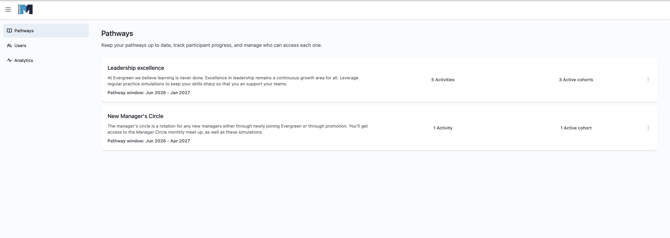
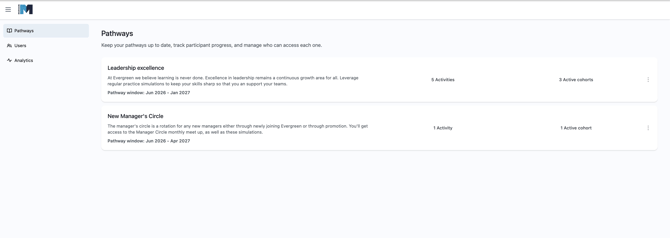
- For each pathway, you will see the Pathway name, pathway messaging (if configured), date range, the number of activities (scenarios), and the number of active cohorts.
- Click into the pathway to see more details and edit the pathway.
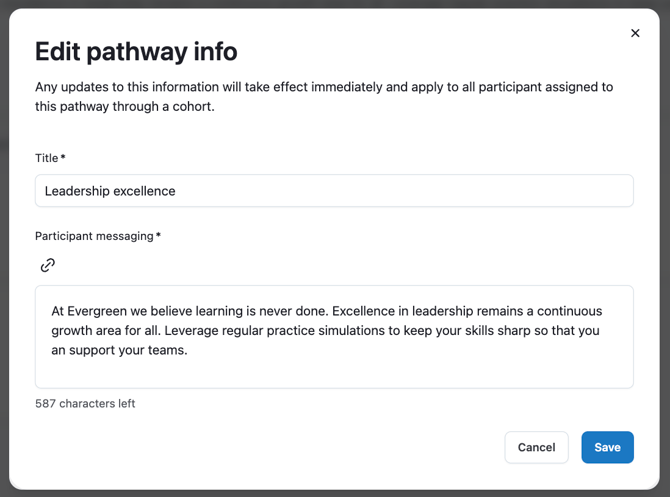
- Click Edit to adjust the Pathway name and the Pathway messaging. The pathway messaging shows to participants on their pathway page.
- Once in the pathway, you will see two tabs: Cohorts and Activities.
- Cohorts allows you to access your active cohorts. For more information on managing cohorts, check out this article.
- Activities allows you to see and configure the Scenarios available within the pathway. Note - if you wish to adjust the scenarios that are available in the pathway, you will need to reach out to your Customer Success Manager.
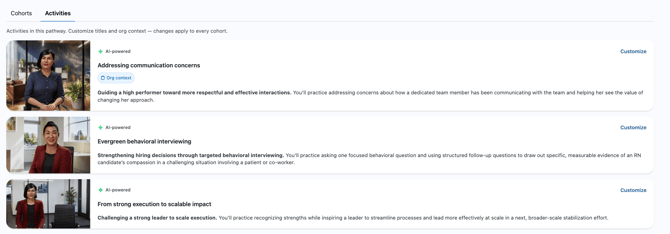
- For each scenario, you will see a thumbnail of the scenario art, an indication of if the scenario is Human-powered or AI-powered, an indication of if an Organizational Context has been added to the scenario, and a brief summary of the scenario.
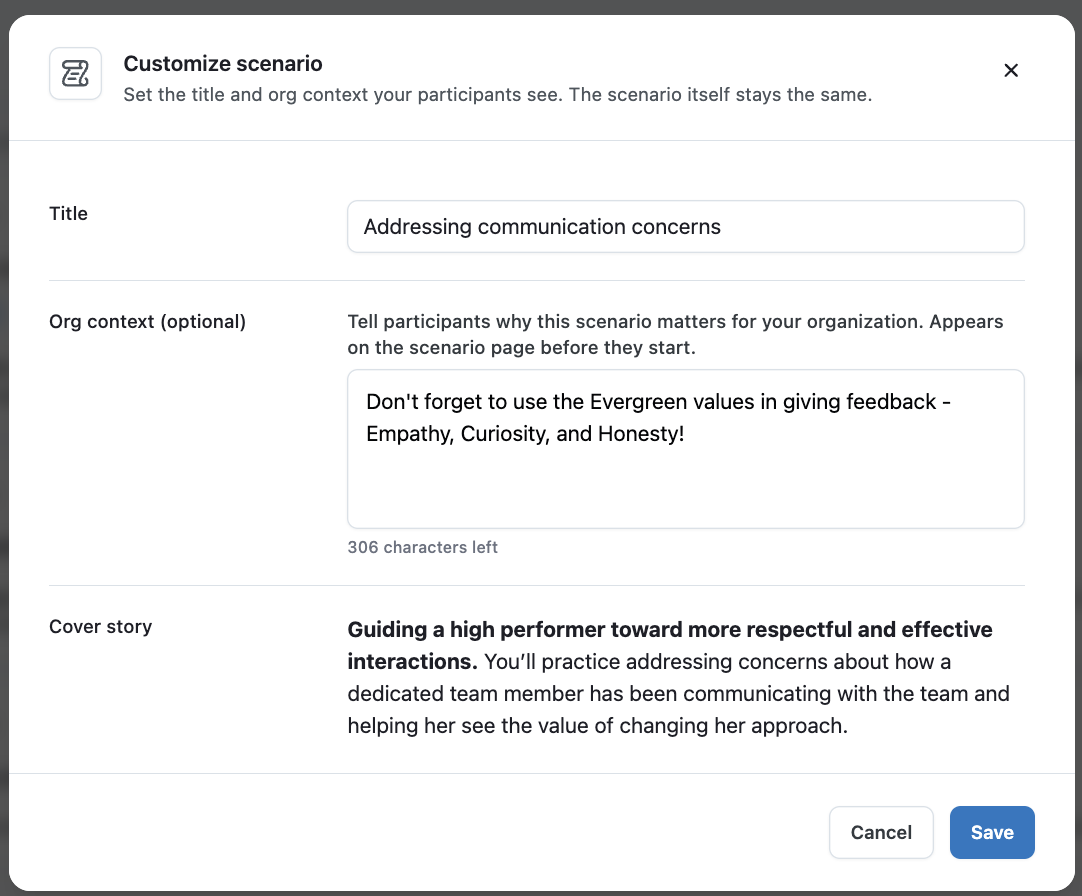
- To adjust the scenario configurations, click the Customize button. For each scenario, you can adjust the title and the org context. The org context will show to participants in a blue box on their scenario page, allowing you to easily provide additional details on how they should approach the conversation, referencing organization materials or values.