![mursion_mark_full-color_standard_1000pxw.png]](https://support.mursion.com/hs-fs/hubfs/mursion_mark_full-color_standard_1000pxw.png?height=28&name=mursion_mark_full-color_standard_1000pxw.png)
SCORM Integration Guide Setting It Up
Mursion supports SCORM 2004 (3rd Edition) and SCORM 1.2 package versions. You must be using the New Admin and New Pathway experiences to configure SCORM.
To get started, work with your Customer Success Manager (CSM), who will enable SCORM for your organization. They'll need the following details from you:
| We need | What it means |
|---|---|
| Learning platform origin | The address Mursion sends completion and outcome data back to. Include https:// and stop at the domain — no path or trailing slash. |
| SCORM version | 1.2 or 2004 (3rd Edition) |
| Sign-in URL | Where participant emails should direct people to reach your learning platform |
| Pathways to enable | Which pathways you want delivered via SCORM. We recommend configuring SCORM on new pathways so that your data stays consistent for the life of the project. |
Once SCORM is enabled:
- Log into the Mursion portal. Any pathway configured for SCORM delivery will show a SCORM tag, and will automatically get a SCORM cohort added to it.
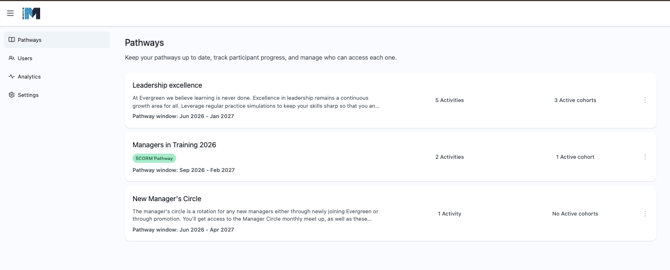
- Click into the pathway to download its SCORM packages. Each activity (scenario) in the pathway has its own SCORM zip file.
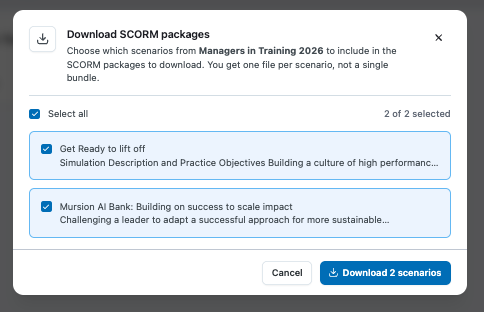
- In your LMS, configure the activity and upload the corresponding zip file. Any settings you configure in your LMS — completion limits, access controls, and so on — will work as expected.
Accessing the Simulations
Participants with access to the course and activity in your LMS can launch the simulation directly from there.
- First-time access: Participants are prompted to accept the Mursion user agreement.
- Scenario page: Participants land on the scenario page for the activity they're accessing.
- AI-powered simulations: Participants can review the scenario and start it immediately, without leaving the LMS.
- Human-powered simulations: Participants schedule their session, then return to the course at the scheduled time to start it.
- Completion: After the scenario ends, Mursion sends a completion indicator back to your LMS. For AI-powered simulations, we can also send a Pass/Fail result based on the scenario's Goal Achieved score. To enable this, talk to your CSM — your data privacy agreement will need to cover individual performance data.
How Completion and Outcome Map to SCORM Fields
For AI-powered simulations, how completion and outcome are reported depends on your SCORM version and your completion setting:
SCORM 1.2
- Session outcome cannot be shared separately — SCORM 1.2 uses a single status field, cmi.core.lesson_status.
- Send completion when participant is finished: cmi.core.lesson_status is set to completed when the participant finishes the sim, regardless of outcome.
- Send completion when participant passes: cmi.core.lesson_status is set to passed when the participant achieves the scenario goal.
SCORM 2004
- Session outcome can be shared separately from completion, using two fields: cmi.completion_status and cmi.success_status.
- Send completion when participant is finished: cmi.completion_status is set to completed when the participant finishes the simulation, regardless of outcome.
- Send completion when participant passes: cmi.completion_status is set to completed when the participant achieves the scenario goal.
- If share session outcome is enabled: cmi.success_status is set to passed or failed depending on the session's outcome.
- If share session outcome is not enabled: cmi.success_status is not updated by Mursion and remains at its default value.
Human-powered simulations
For human-power simulations, completion is sent once the session is marked complete:
- For SCORM 2004, cmi.completion_status is set to completed when the participant finishes the simulation
- For SCORM 1.2, cmi.core.lesson_status is set to completed when the participant finishes the simulation
What Mursion can identify about your participants depends on your LMS setup. Either way:
- Completion data is visible directly in your LMS.
- Within Mursion, you'll see the number of participants and aggregate performance data for each pathway.
What Information We Capture
Mursion identifies each participant using whatever your LMS provides at launch. We check the following, in order, and use the first one available:
- Student ID — Passed automatically by your LMS through the SCORM standard. Called "Student ID" on SCORM 1.2 and "Learner ID" on SCORM 2004. This is the primary way we match activity to a participant's Mursion account and will be recorded in the Employee ID field for your participants.
- Email address — Only filled in if the student ID itself is formatted like an email address. If it isn't, Mursion generates a unique identifier from the student ID instead, so each participant's records and progress stay consistent across sessions.
- Name — Captured once, when a participant's Mursion account is first created, to set their first and last name. It won't update on later logins, even if the name your LMS sends changes.