![mursion_mark_full-color_standard_1000pxw.png]](https://support.mursion.com/hs-fs/hubfs/mursion_mark_full-color_standard_1000pxw.png?height=28&name=mursion_mark_full-color_standard_1000pxw.png)
This article applies to the new admin experience (white header)
If you are using the legacy admin experience (blue header), please see this article.
What is a cohort?
Cohorts are how you define who participates in a pathway and when. Each cohort is a group of participants with its own set of timelines — so you can run the same program for different groups at different paces, all within one pathway.
If you're familiar with the previous Mursion experience, cohorts replace teams. The core idea is the same — a defined group of participants — but cohorts give you more flexibility. You can have multiple cohorts within a single pathway, each with independent start and end dates per scenario. That means a cohort of new managers can start in June while a cohort of senior leaders starts in September, all within the same program structure.
How to set up your cohorts
-
In your Mursion Administrator experience, navigate to the pathway that you want to add a cohort to.
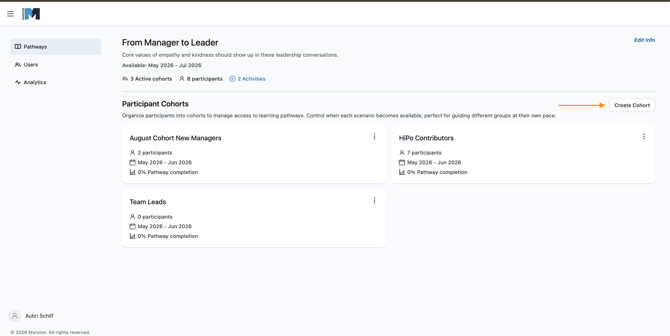
- Click Create Cohort
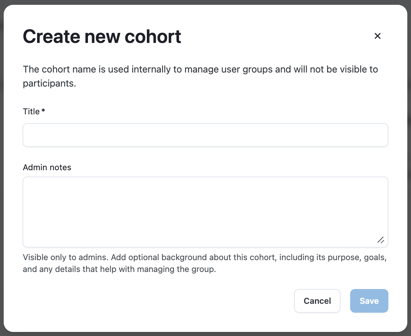
- Add a cohort title and admin notes. Admin notes are visible only to internal admins and will not be visible to participants in the cohort.
- Once you've added the cohort, you can add participants with existing Mursion accounts to the cohort. If you want to add new users to the cohort that you just created, you can do this through the Add New Users flow and select your newly created cohort. Users who are added to this cohort will be granted access to all of the scenarios in the pathway by default within the defined timelines.
Managing scenario access and timelines
- Navigate to the Cohort you want to manage.
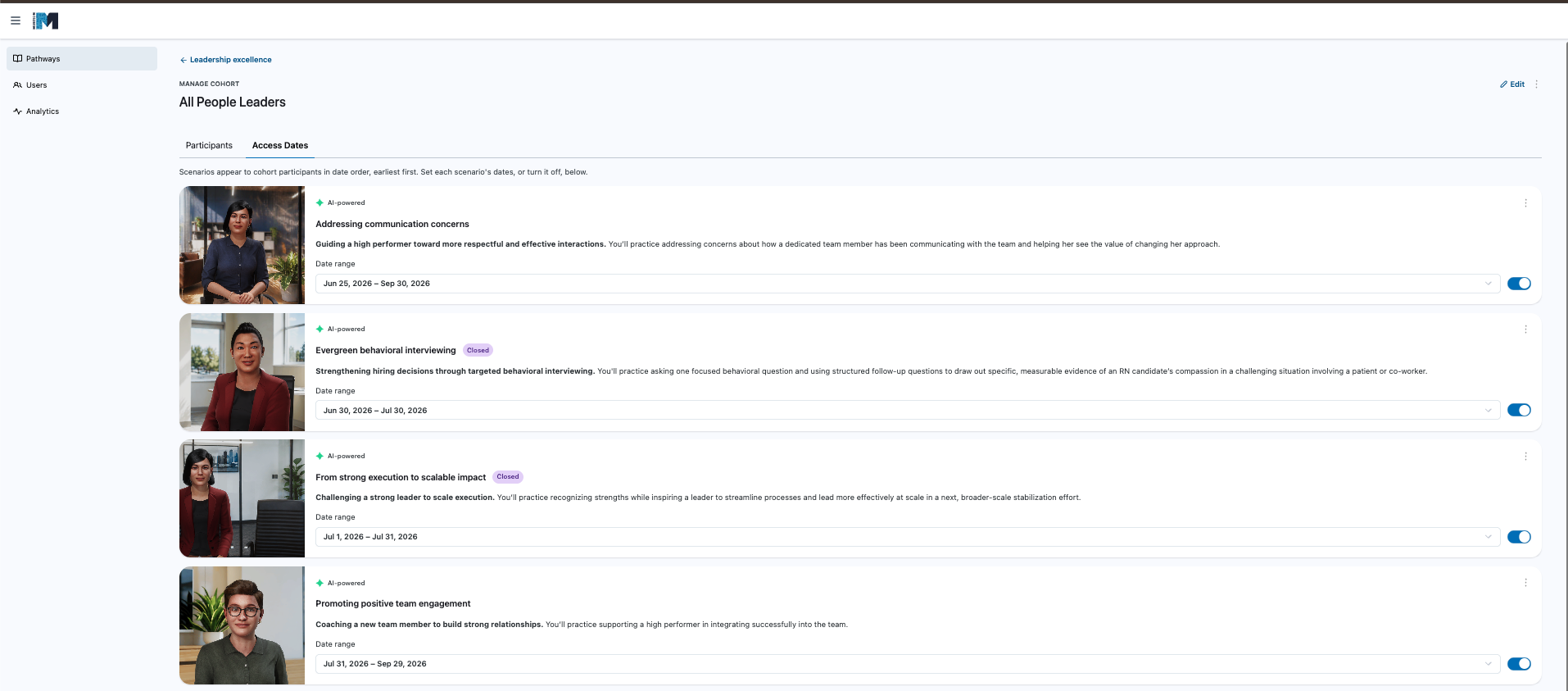
- Click the Activities tab.
- You'll see a list of the scenarios within the pathway and associated date ranges.
- By default, the scenarios will follow the default project timeline. For each scenario, you can adjust the dates that a participant has access to start or schedule the scenario.
- You can also disable a scenario for a cohort by using the blue toggle. This will prevent all participants in the cohort from seeing the scenario on their pathway.