![mursion_mark_full-color_standard_1000pxw.png]](https://support.mursion.com/hs-fs/hubfs/mursion_mark_full-color_standard_1000pxw.png?height=28&name=mursion_mark_full-color_standard_1000pxw.png)
Mursion makes it easy to manage cohort assignment and link users to specific pathways and scenarios.
This article applies to the new admin experience (white header)
If you are using the legacy admin experience (blue header), please see this article.
-
To copy a link for a pathway or scenario, log in to Mursion.
-
Select the pathway from your list of active pathways.
-
Select the cohort that you want users to be added to when clicking the link.
-
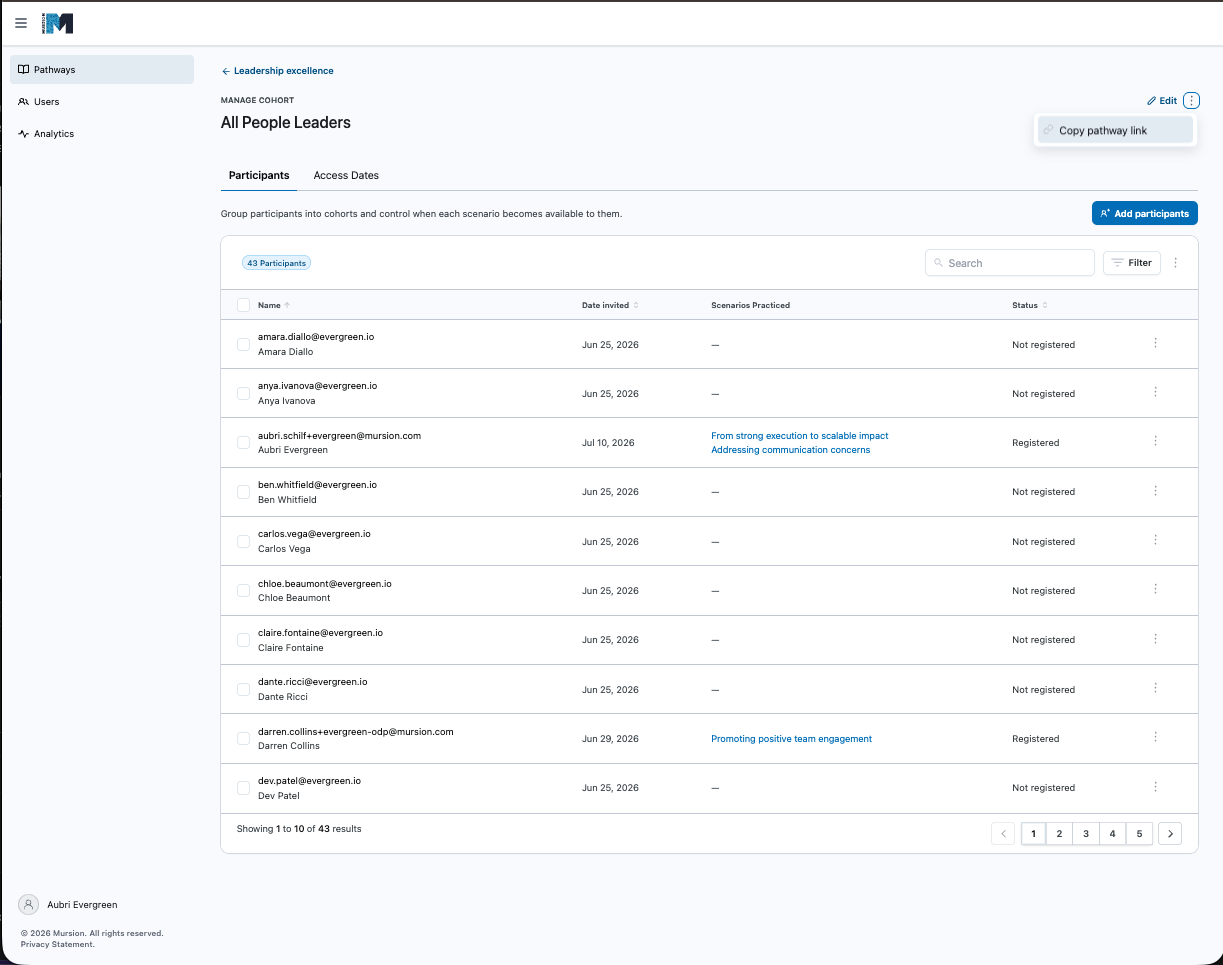
From the cohort, click the three dots in the upper-right hand corner and select Copy pathway link. This link will be automatically copied to your device's clipboard to be shared with your participants or added to your external system easily.
-
When a participant clicks this link, they will be automatically added to the Cohort and will land on the pathway page.
-
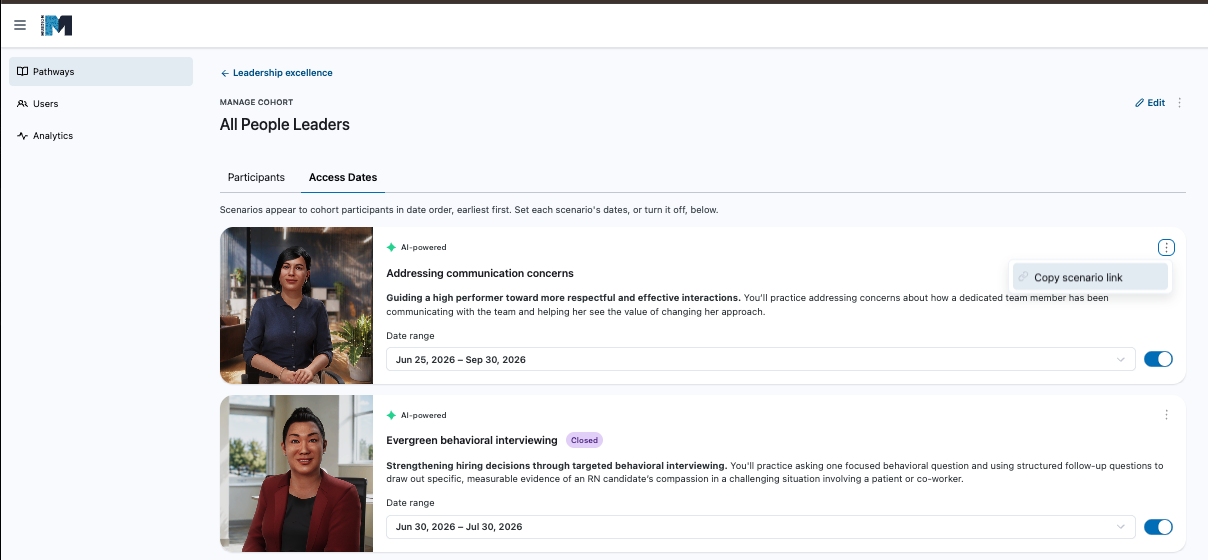
If you would like participants to land on a specific scenario, from the cohort page, click the Access Dates tab. Find the scenario you would like to link to and click the three dots in the upper right hand corner of the Scenario card. Click Copy scenario link to copy the direct link to the scenario.
-
Similar to the pathway link, when a participant clicks this link, they will be automatically added to the Cohort, but will be linked to the specific scenario you copied the link from.