![mursion_mark_full-color_standard_1000pxw.png]](https://support.mursion.com/hs-fs/hubfs/mursion_mark_full-color_standard_1000pxw.png?height=28&name=mursion_mark_full-color_standard_1000pxw.png)
This article applies to the new admin experience (white header).
If you are using the legacy admin experience (blue header), please see this article.
Managing Users
-
Log in to Mursion.
- Select Users from the left navigation pane.
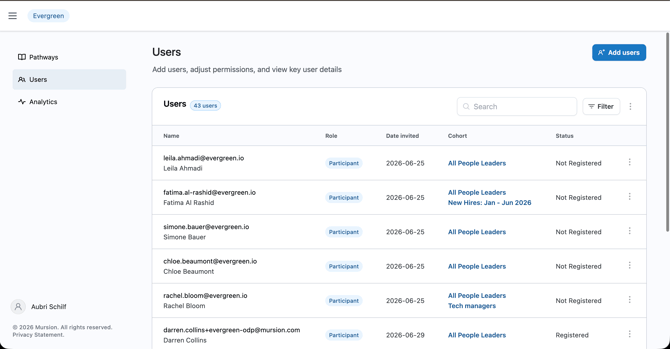
- Review your list of users. You can see user email, name, role, date invited to the Mursion portal, their cohort assignments, and current registration status.
- Roles: Account owner (user with administrative privileges for your organization in Mursion) or Participant (user with access to complete simulations)
- Cohort assignments: This provides information on what pathways and subsequent scenarios users have access to.
- For each user, you can click the three dots and select one of the below options:
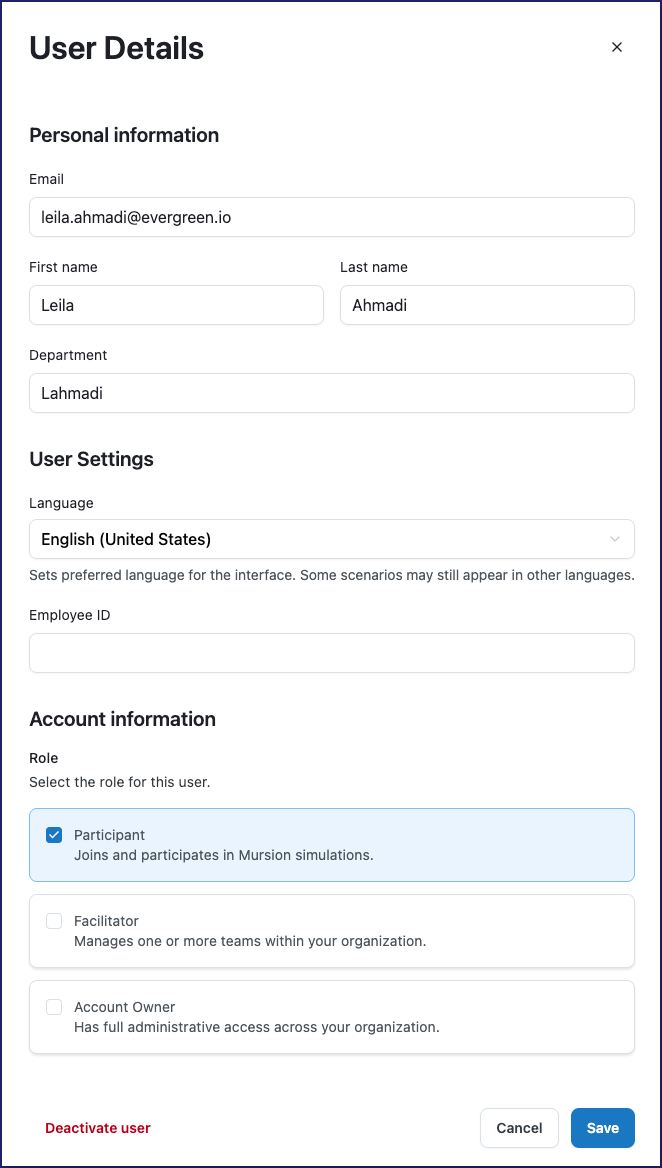
- User Details: Allows you to see and edit all basic user account information for the user.
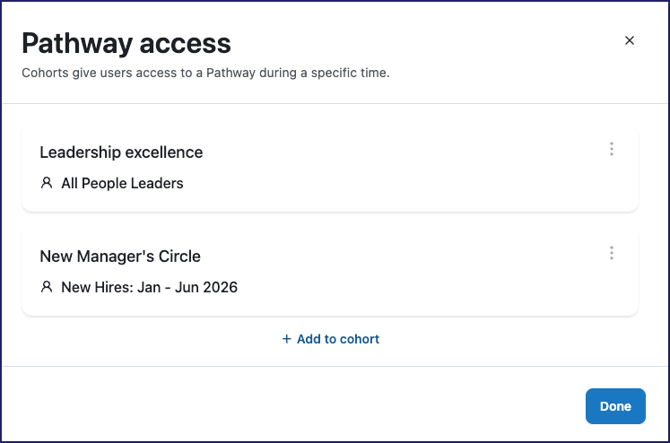
- User pathway access: Allows you to review and update what pathways this user has access to
- Deactivate user: This will deactivate the user, removing their access to all pathways, cohorts, and the Mursion portal entirely.
- For users who have not yet completed registration, you can also click to Resend Registration Invite which will resend their registration link to their email address.
- User Details: Allows you to see and edit all basic user account information for the user.
Adding New Users
- To add new users, click Add Users.
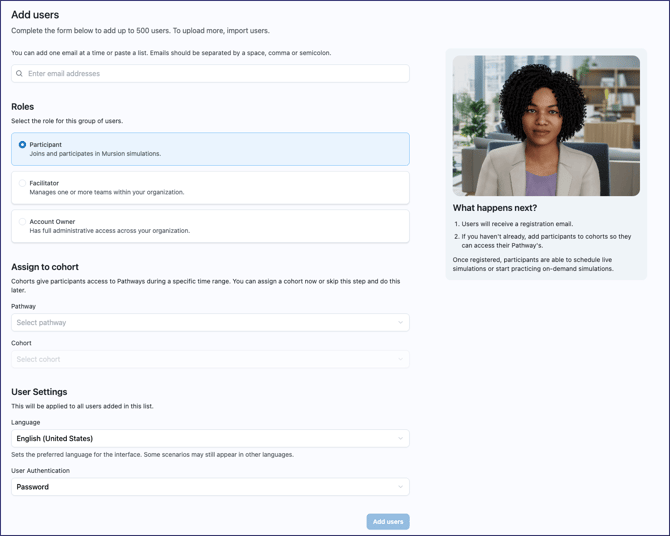
- Enter the email address(es) of the users you wish to invite.
- Select the role for these users.
- If you select Participant for these users, you can select pathways and cohorts to add them to. This is recommended as it will give them access to complete simulations when they first log in to Mursion. If you do NOT grant them access to any cohorts, they may have a blank dashboard on first log in.
- You can set their default language option. The users can change this when they log into Mursion the first time.
- If you have SSO enabled, you can select their authentication type: SSO (they will use the organization's single-sign on solution to log in to Mursion) or Password (they will be prompted to create their own password to log in to Mursion).